Create a Coverage Report
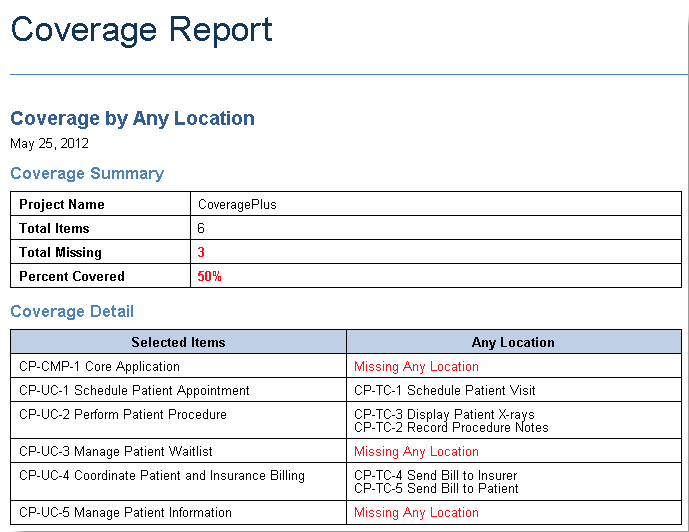
The Coverage Report displays downstream relationships to the selected set in HTML, Microsoft Word, or Microsoft Excel. It provides a summary and detailed information on the traceability coverage for the selected items.
To create the report:
Select the data you want to export using the Explorer Tree or an advanced filter.
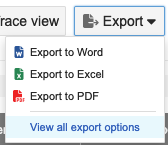
Select Export > View all export options.
In the window that opens, select Coverage Report.
Select a format and choose the parameters you need (Missing coverage only, Downstream item location). If you select no parameters, your report looks like the following image. For a report with a more specific set of relationships, select one or both parameter options.
(Optional) Select Email me the report to receive a link to the export when it's finished. Links are stored for 7 days before they're automatically deleted.
Select Run.
A confirmation message appears with a link to the report.