View and download Reports history
From the the Reports history page, you can view and download reports. You can also see the status of reports that are generated.
The information on the Reports history page is maintained for a rolling 7-day period. After this period, reports are removed from the history. This feature allows you to return to Jama Connect once a report has completed, because reports aren't generated instantly.
Best Practice
Download and save any reports you want to retain according to your organization’s policies and data retention guidelines.
Note
Organization admins see all reports. Users see only reports they create.
To view and download reports:
From the Jama Connect header, select Reports > Reports history.

Choose the report you want to view, then select Download.
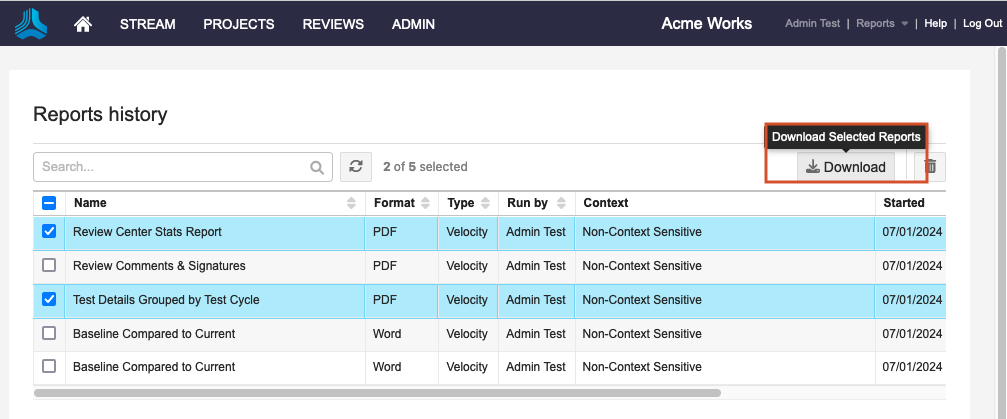
A pop-up message notifies you that the download was initiated.
From the Downloads section of your browser, select the report to open it.
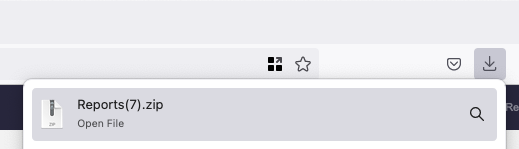
The report you selected is displayed.