Deactivate and reactivate users
Users can't be deleted from Jama Connect but they can be deactivated. When you deactivate a user, the user becomes inactive and frees up named assigned licenses associated with that user.
Organization and User Admins only
You need organization or user admin permissions for this task.
To deactivate and reactivate a user:
Select ADMIN > Organization, then select Users.
In the Action column for the user you want to deactivate, select Deactivate.
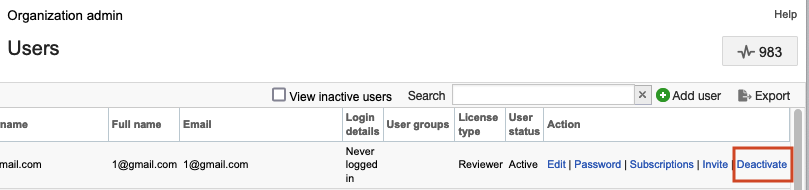
Deactivated users disappear from the list until you select View inactive users.
To reactivate a user, select Activate, then select a license type in the User license type window and select Save.
Your changes are saved.